Build a Docker MID Server
Introduction
This post discusses how to configure and run a MID Server using Docker on you Windows computer. The following software is required in order to install the MID Server.
- Windows Subsystem for Linux
- Docker Desktop for Windows
This is one of many options you have for running a MID Server.
Pre-Requisites
Windows Subsystem for Linux
In order to install WSL on your computer following these instructions;
https://learn.microsoft.com/en-us/windows/wsl/install
Docker Desktop
Docker Desktop allows us to manage images and containers. We will use it to run the MID server once it is setup, removing the need to launch from the WSL command line.
To install Docker Desktop download follow these instructions;
https://docs.docker.com/desktop/install/windows-install/
The most reliable way of installing was to run the installer from a command line running as administrator.
During the install process make sure you select “Use WSL 2 instead of Hyper-V”. Also, if you don’t have one already, create a Docker account and use that to log into the Docker Desktop once installed.
Once installed, make the following changes to settings;
- Under “General”, make sure “Use the WSL 2 based engine” is selected;

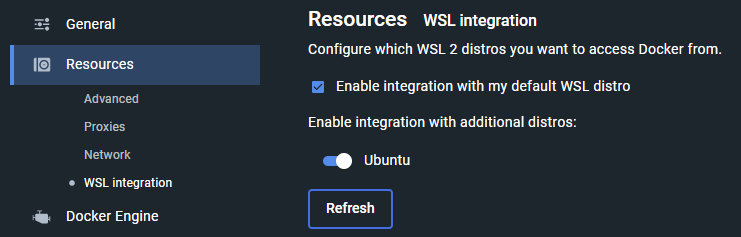
- Under “Resources”, select “WSL Integration” and make sure “Enable integration with my default WSL distro” is selected. You may also need to enable other distro’s if not already selected.
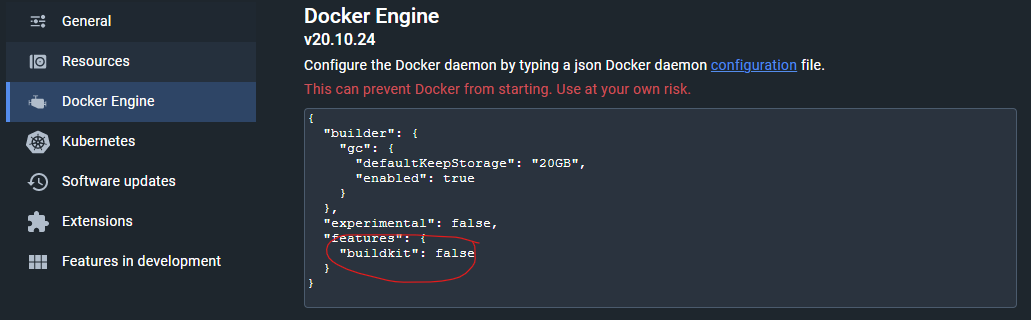
- Under “Docker Engine”, set the “buildkit” value to “false”. This was needed to fix issues with the build process.
ServiceNow Docker Recipe
Next, you’ll need to download the current Docker recipe from your instance. This can be found under “MID Servers \ Downloads”.
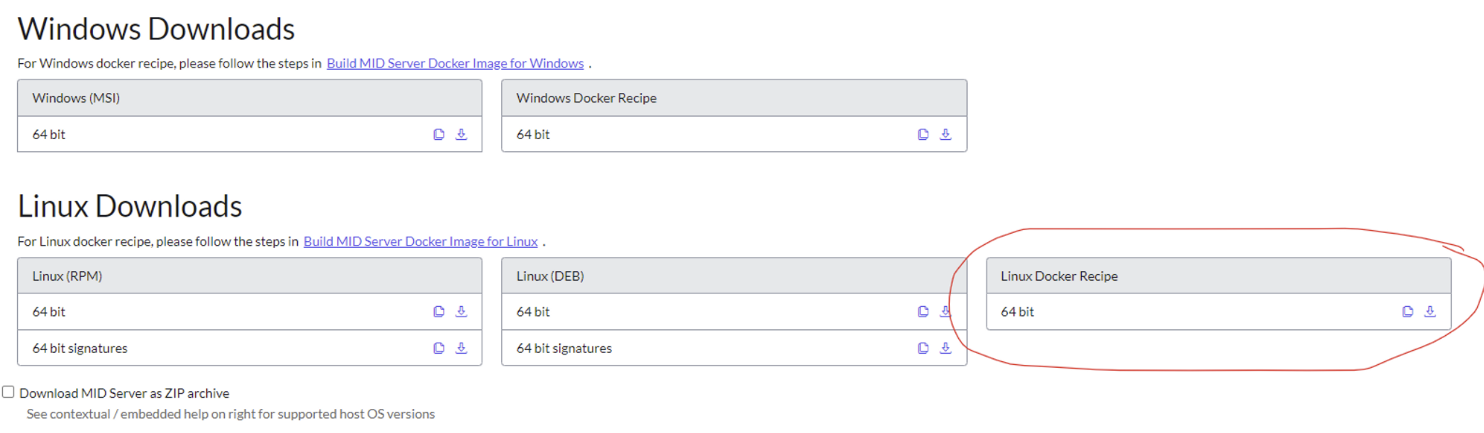
Once downloaded, extract it to a new folder to make it easier to build the image. For this article, it’s assumed that the files have been extracted to C:\Docker\Tokyo.
Open the .env file and copy the tag name, this will be used when building the image.

Build the Docker Image
Launch Windows Subsystem for Linux (WSL), we’ll do the initial build and configure from the command line.
To build the image, run the following command:
docker build /mnt/c/Docker/Tokyo/ --tag <tag_name_copied_from_previous_step>
for example;
docker build /mnt/c/Docker/Tokyo/ --tag mid:tokyo-07-08-2022__patch4b-01-31-2023_02-07-2023_1702
When run, this will build the image, it will take several minutes to complete. Once completed you’ll see messages similar to the following;

And in Docker Desktop, under Images, you should see a new image called “mid”.

If you encounter any errors (such as those relating to OAUTH), then there could be an issue with the Build Kit setting disabled earlier. To fix, run the following command in the WSL and try the build again:
export DOCKER_BUILDKIT=0
Configure the MID Server
Before starting the container, we need to add the instance and user information to the configuration.
The config file can be found in the folder the recipe was extracted to (i.e. c:\Docker\Tokyo) and is call mid.env.
If you haven’t already created a MID server user in your instance, do that now. Make sure you assign a password and the “mid_server” role to it.
Update the following fields;
- MID_INSTANCE_URL
- MID_INSTANCE_USERNAME
- MID_INSTANCE_PASSWORD
- MID_SERVER_NAME
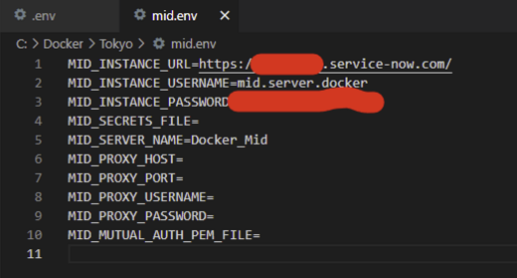
Run the MID Server
Now that the configuration is complete we can run the MID Server container for the first time.
First, you need to copy the image ID from Docker Desktop. This can be found under the image name.

Next, run the following command from the WSL.
docker run --env-file /mnt/c/Docker/Tokyo/mid.env <image_id_copied_in_previous_step>
The MID server should now startup and a new record added to the MID Server list in your instance.

Finally, validate the MID server by selecting “Validate” from the related links in the new MID server record. Once completed, you should see the following;
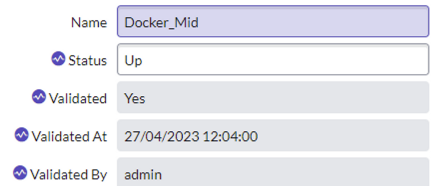
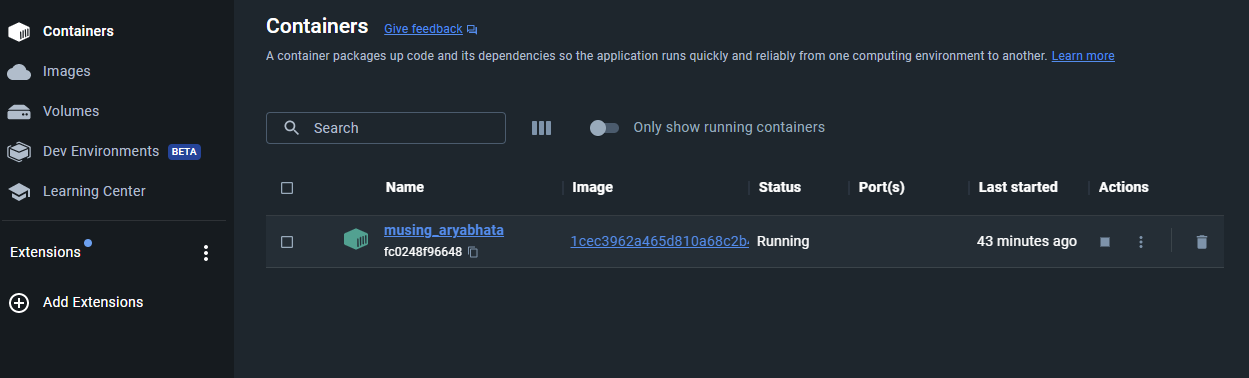
From within the Docker Desktop, underneath Containers, you should now see your MID server running.
Starting/Stopping the MID Server
Now that the container is configured and running, we can use Docker Desktop to start/stop the MID server in future without needing to run it from the WSL command line.
Next to the container will be a Stop button.

This can be used to stop the MID server from running. It will shutdown the MID server correctly rather than just switching it off.
Starting it back up again is as simple as pressing the Play button…

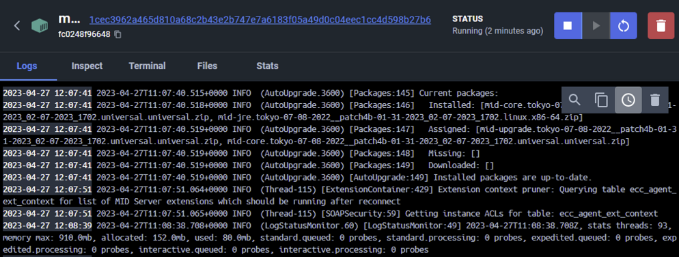
Once running, you can click the container name (in this case musing_aryabhata) and view the log.